What Is Shopify Rollouts? How to Schedule, Launch and A/B Test Store Changes
By Thomas Vu · Published
Shopify Rollouts is a built-in admin tool that lets you prepare changes to your store ahead of time and decide when, and to whom, they go live. You bundle theme edits, a new theme, a checkout configuration, discounts or catalogs into one rollout, then publish it on a schedule, run it for a set period and roll it back, or test it against your live store as an A/B test.
Before Rollouts, a sale at midnight meant someone awake at midnight to publish the theme, switch on discounts and switch them off again. Testing a new theme usually meant installing a third-party app. This guide covers what Rollouts does, which plans get it, how to create each type step by step, and the limits to know before you rely on it for a big launch.
Key takeaways
- Where it lives: Markets > Rollouts in your Shopify admin. It's available on the Basic plan and higher; Experiments (A/B tests) need the Grow plan or higher (Shopify Help Center).
- Three types: a Launch publishes changes permanently, an Event publishes them for a set period and then rolls them back, and an Experiment compares a treatment against your live store.
- What it can change: your main theme (edits or a full theme swap), the checkout and accounts configuration, discounts and catalogs, with one theme change, one checkout change and one discount change (up to 250 discounts) per rollout.
- Decide before the end date. Events and Experiments roll back automatically when they end. To keep the changes, end the rollout and apply it permanently first.
- Watch your feeds. During a partial rollout, Google, Meta and other channels can show different prices or products than some visitors see on your store.
What is Shopify Rollouts?
Shopify's help center defines a rollout as a scheduled set of changes to your online store's main theme and related store areas, which you can apply permanently or only for a set period (Shopify Help Center). You find it under Markets > Rollouts, and the empty page sums it up: prepare changes to themes, discounts, catalogs and checkout for upcoming launches, temporary events or A/B tests.
Shopify introduced Rollouts in its Winter '26 Edition under the line "Test and time your launches with Rollouts", as a way to schedule theme changes and A/B test them inside the admin (Shopify Editions). It has grown in two steps since then:
- March 31, 2026: a wider release that added automatic end dates for time-limited promotions and market targeting to theme scheduling and A/B tests. Rollouts itself is on Basic and above; A/B tests need Grow and market targeting needs Advanced or Plus (Shopify Changelog).
- June 5, 2026: scheduling, gradual publishing and A/B testing for whole themes and for checkout and customer account configurations, plus mutually exclusive experiments so you can run several at once (Shopify Changelog).
Today you can schedule or run up to five rollouts at the same time (Shopify Blog).
The biggest practical change is that you no longer need a duplicate theme for every campaign. Shopify lists drafting customizations on your main theme, instead of creating a copy, as one of the main reasons to use a rollout. When a rollout replaces your theme or checkout, Shopify makes a copy of the published version for you, so you can keep editing the live store separately (Shopify Changelog).
The three rollout types: Launch, Event and Experiment
Every rollout is one of three types, and the type decides what happens at the start and end dates (Shopify Help Center).
Type | What it does | End date | Plan |
|---|---|---|---|
Launch | Merges your changes into the store permanently | None (adding one makes it an Event) | Basic or higher |
Event | Publishes changes for a set period, then rolls them back | Required | Basic or higher |
Experiment | Shows the changes (treatment) to some visitors and your live store (control) to the rest, then reports the difference | Defaults to 90 days after the start | Grow or higher |
Use a Launch when the change is final: a redesigned homepage, a new theme, new branding on customer account pages. If you'd like to release a change to a share of visitors first, know how the rules fit together: any rollout below 100% allocation needs an end date, and adding an end date turns a Launch into an Event. In practice, a staged release is an Event at partial allocation that you end and apply permanently once you're happy with it.
Use an Event for anything with an end: a holiday theme for one week, a flash sale, a launch-day banner. Shopify's BFCM guide sums up the appeal: when the promotion ends, everything goes back the way it was. It also suggests chaining Events: end the Black Friday Event at midnight on Sunday night (12:00 am Monday) and start the Cyber Monday Event the moment it ends (Shopify Blog).
A sale Event is also when best sellers sell out fastest. If you want those sold-out products off the top of your collections while the Event runs, Redsun: Out of Stock Manager (our app) moves them to the bottom in real time and brings them back up when they're restocked.
Use an Experiment when you're not sure the change is better. Shopify splits eligible visitors between control and treatment and reports how each group behaves, so you can decide with numbers.
What a rollout can change
A rollout can include five kinds of changes. The table comes from Shopify's rollout types page.
Area | Change | Notes |
|---|---|---|
Online store theme | Edit main theme | Customizes your current theme inside the rollout |
Online store theme | Replace main theme | Swaps in another theme from your library, such as Dawn to Horizon |
Checkout and accounts | Replace configuration | Swaps in a different checkout and accounts configuration |
Catalogs | Set to Active or Draft | Active publishes the catalog's prices and availability; Draft withdraws them |
Discounts | Activate or deactivate | Turns existing discounts on or off for visitors in the rollout |
Each rollout holds at most one theme change, one checkout and accounts change and one discount change (up to 250 discounts), plus any number of catalog changes (Shopify Help Center). Anything you add must already exist: install the replacement theme, create the checkout configuration, catalog or discount first, then pick it inside the rollout.
Which Shopify plans include Rollouts?
Feature | Basic | Grow | Advanced | Plus |
|---|---|---|---|---|
Launch and Event rollouts | Yes | Yes | Yes | Yes |
Experiments (A/B tests) | No | Yes | Yes | Yes |
Market-specific targeting | No | No | Yes | Yes |
Sources: plan access from the Shopify Help Center; market targeting from the Shopify Changelog.
Store owners and administrators can manage rollouts. Other staff need the Markets > Rollouts permission plus the permission for each change type, for example Online store > Themes to swap themes, Online store > Edit code to edit the current theme, and Discounts for discount changes.
How to create a rollout in Shopify, step by step
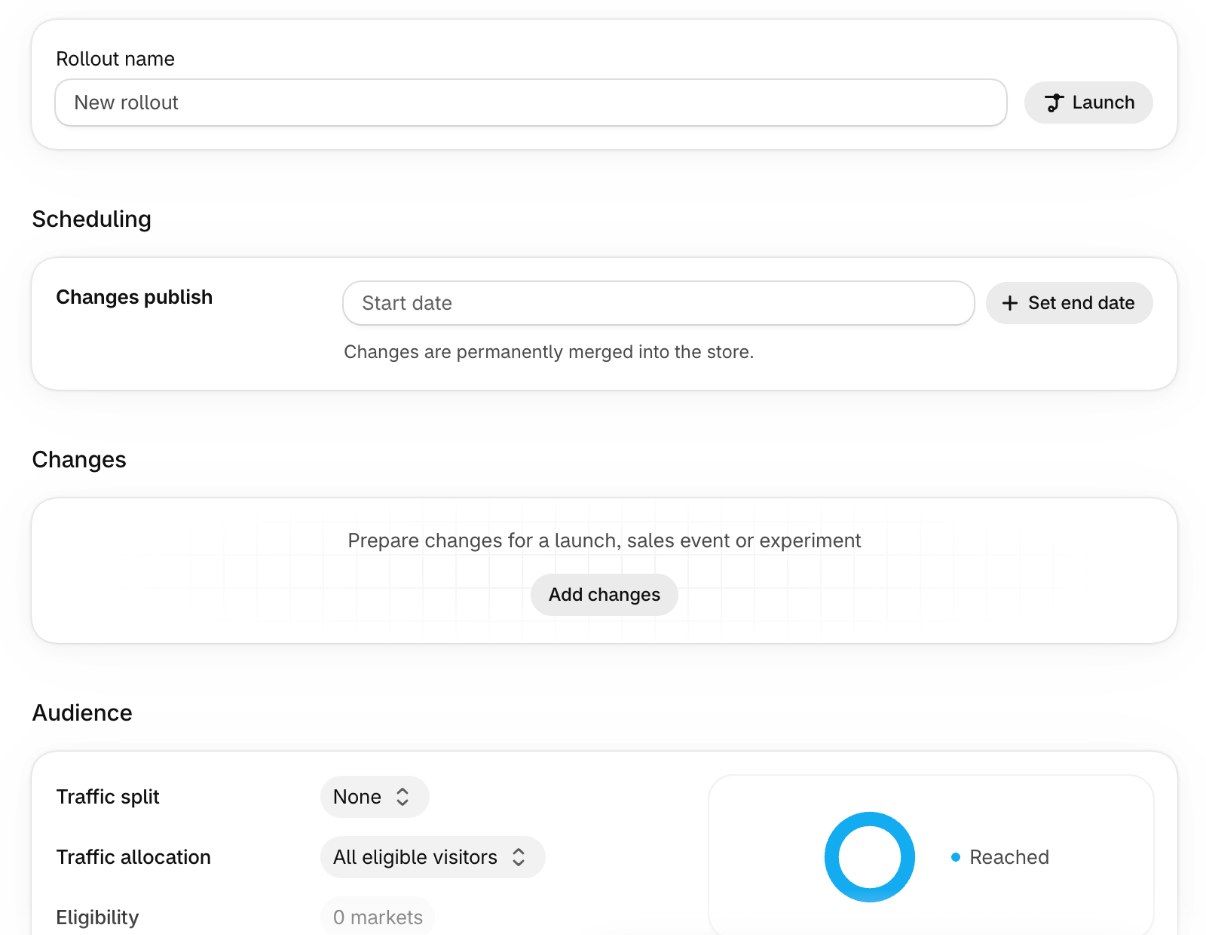
These steps follow the Shopify Help Center guide and the Create rollout screen as it looks in the admin today.
- In your Shopify admin, go to Markets > Rollouts and click Create rollout.
- Give the rollout a clear name, such as "Black Friday 2026" or "Refresh theme A/B test".
- Pick the type from the button next to the name: Launch (the default), Event or Experiment.
- Under Scheduling, set the start date and time. For an Event or Experiment, set the end date too. Times use your store's timezone from Settings > General.
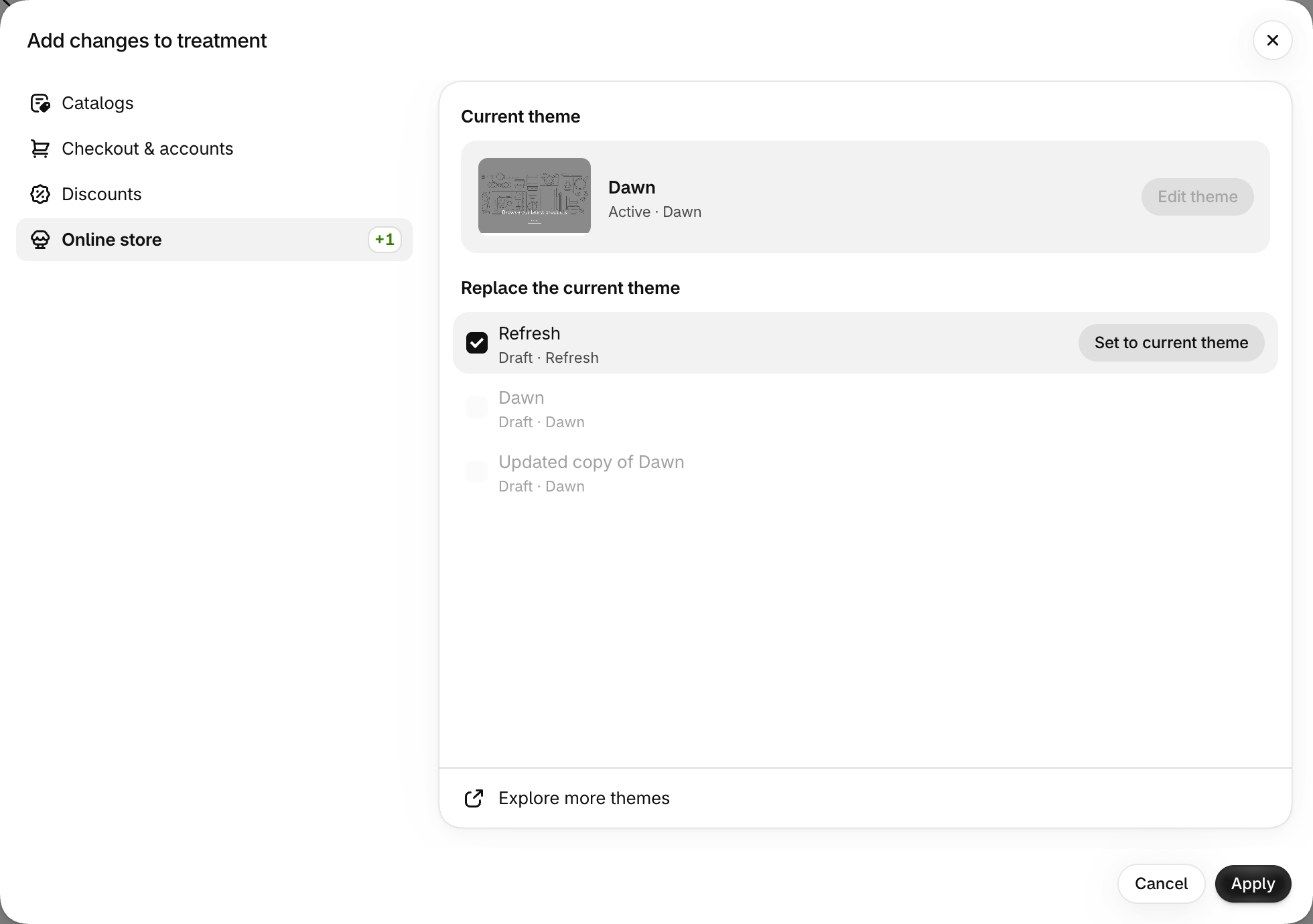
- Under Changes, click Add changes, choose Online store, Checkout & accounts, Catalogs or Discounts, select the change and click Apply. To edit your current theme rather than swap it, save the rollout first, then use Edit theme.
- Under Audience, check Traffic allocation (all eligible visitors by default) and Eligibility, which shows the markets your changes reach.
- Fix anything flagged under "Resolve rollout conflicts" (these block saving), read any "Review rollout conflicts" warnings, then click Save.
Once saved, a rollout with a future start date shows as Scheduled, and it publishes on its own at that time. You can preview the changes before the start, and edit them at any point until the rollout ends.
How to A/B test with a Shopify Rollouts Experiment
An Experiment is a rollout with a control group and a treatment group. The control mirrors what shoppers see on your live store today; the treatment gets your changes. You need the Grow plan or higher.
To set one up, create a rollout, switch the type to Experiment, add your changes to Treatment, and set the audience:
- Traffic split divides visitors in the test between control and treatment. It starts at 50/50, and you can pick a preset or drag the slider.
- Traffic allocation decides how many eligible visitors enter the test at all.
- Experiment runs from sets the test window. Shopify's default end date is 90 days after the start.
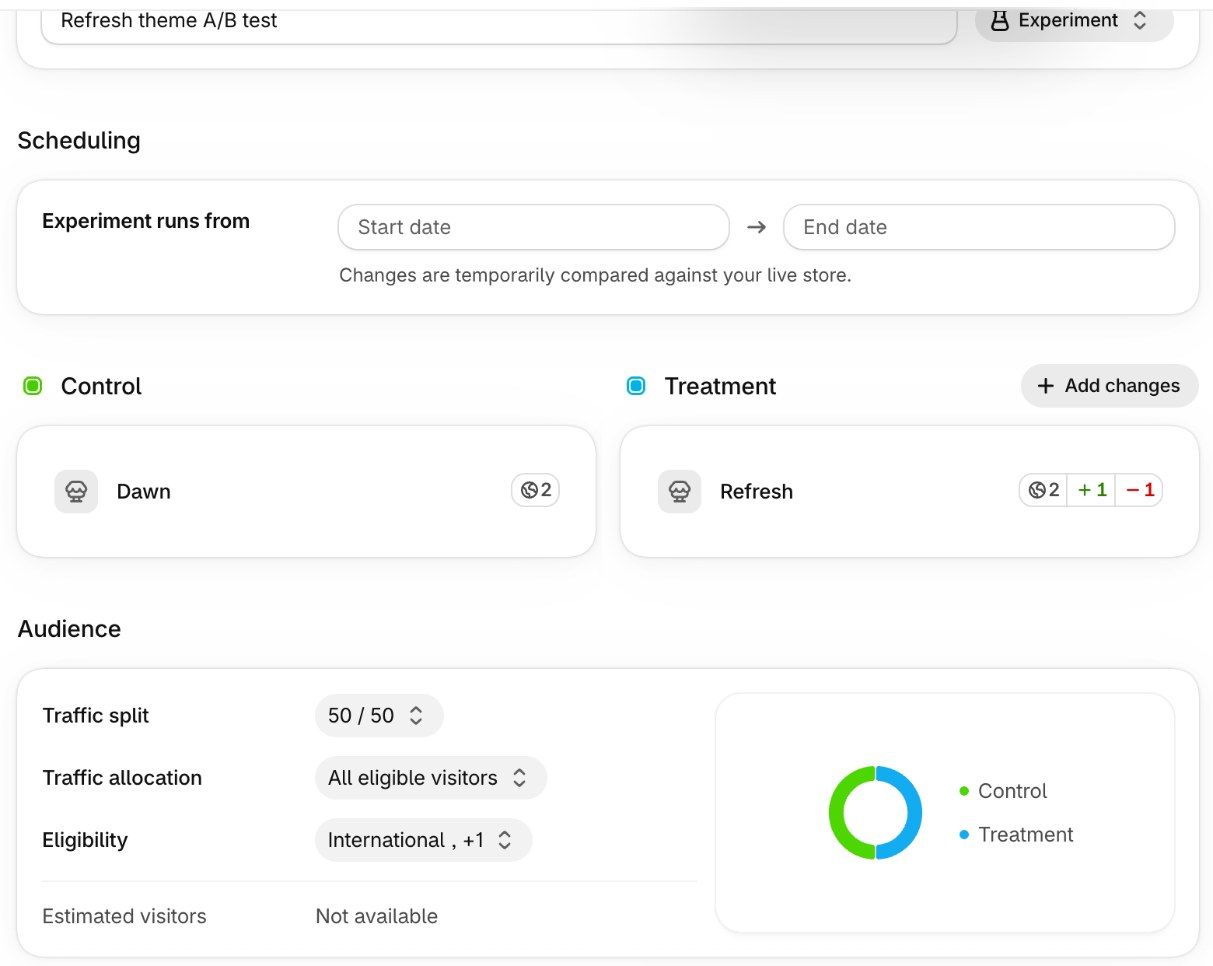
What we saw setting one up: we built this Experiment on our own development store on October 18, 2026. Three details aren't obvious from the docs. Once we ticked Refresh as the replacement theme, the Edit theme button greyed out. A rollout holds one theme change, so you either replace the theme or edit it, not both (and editing needs a saved rollout). Eligibility filled itself in ("International, +1") with the markets our change reaches; on Advanced and Plus you can make changes market-specific. And Estimated visitors read "Not available" on our development store, which has no traffic history, so check it on your live store before you plan how long to run the test.
The two audience settings multiply. Shopify's own example: a 50% allocation with a 50/50 split means the treatment reaches 25% of eligible visitors (Shopify Help Center).
What an Experiment measures
Experiments report a focused set of metrics, which depend on what you changed (Shopify Help Center):
- Theme changes: conversion rate over time, bounce rate, reached checkout rate and add to cart rate.
- Checkout and accounts changes: checkout conversion rate.
- Both together: bounce, reached checkout and add to cart rates for the storefront, and conversion rate over time for checkout.
Results come with confidence intervals (Shopify Blog). Read them when the test ends: if the ranges for control and treatment still overlap, treat it as no clear winner rather than a loss. A few habits make the result more trustworthy:
- Test one idea at a time. If the treatment changes the theme and a discount, you won't know which one moved the numbers.
- Set the length up front and run whole weeks. Shopping on a Tuesday differs from a Saturday, so cover full weekly cycles, and don't stop the test the first day the numbers look good.
- Don't edit mid-test. Shopify warns that changing the treatment or control while an Experiment is active can affect its results.
- Give low-traffic stores time. With a small audience, a 50/50 split at 100% allocation fills both groups fastest.
When you have a clear winner, end the Experiment and choose to apply the treatment permanently. If you let it reach its end date, it rolls back.
Managing rollouts: statuses and actions
Every rollout has a status, and the status decides what you can do with it (Shopify Help Center).
Status | What you can do |
|---|---|
Draft | Edit, archive, delete |
Scheduled | Edit, archive, delete |
Active | Edit, pause, end |
Paused | Edit, resume, end, archive, delete |
Ended | Archive, delete |
Three actions can't be undone, so double-check before you click:
- Apply permanently. Once you apply a rollout, you can't revert its changes. For a Draft or Scheduled rollout, you can choose "Will be applied permanently" in its settings ahead of time.
- Archive. Archiving permanently deletes the rollout's theme changes, and you can't unarchive or restart it.
- Delete. A deleted rollout can't be recovered.
You can't archive or delete an Active rollout; pause or end it first. And to publish a different theme or checkout configuration the normal way, you first need to archive any unended rollouts that change the live theme or checkout.
Limits to know before you rely on Rollouts
Rollouts covers most launch and sale work, and a few cases sit outside it (Shopify Help Center):
- Vintage themes aren't supported. You need an Online Store 2.0 theme.
- Liquid template changes aren't supported. For code changes, edit a separate theme and add it to the rollout as a theme replacement.
- Online store only. Theme and checkout changes don't apply to headless or custom storefronts, and Experiments and partial rollouts only run on the online store. Analytics cover the online store, cart and checkout, not headless storefronts or Shopify POS.
- Catalog edits stay. A rollout only switches a catalog between Active and Draft. Price changes you make inside the catalog during the rollout remain after it ends.
- Discounts keep their own dates. A discount with its own active dates still turns on during those dates, unless a rollout deactivates it for the visitors in that rollout.
External channels and SEO
External channels don't receive rollout information (Shopify Help Center). During an Experiment or a rollout below 100%, Google Shopping, Meta catalogs and other apps can show prices or availability that don't match what some visitors see. Shopify warns that mismatches can lead to product reviews, disapproved ads, delisting or account suspension on those channels.
To stay safe:
- Use 100% allocation for price and availability changes on products you advertise.
- Pause ads or remove listings for products in a partial test.
- Keep product URLs stable and avoid errors on indexed product pages.
- Don't leave an Experiment running longer than you need. Google's own A/B testing guidance asks sites to end tests once they have enough data and to show Googlebot the same thing visitors get (Google Search Central).
If sold-out products are part of the picture, our guide to handling out-of-stock products for Google and AI shopping covers the feed side in more detail.
Rollouts vs. third-party A/B testing apps
Rollouts is free with your plan, runs inside the admin and tests whole themes, checkout configurations, catalogs and discounts against real traffic. For most stores that covers the questions worth testing: does the new theme convert better, does the new checkout upsell help, does this offer lift sales.
Dedicated testing apps still have a place for teams that test constantly. When Rollouts launched, conversion specialists interviewed by Convert, which sells its own A/B testing tool, described it as built for safe launches first, with fewer targeting and custom-goal options than specialist tools (Convert). Since then, Shopify has added theme edits without a duplicate theme, checkout tests and parallel experiments. A sensible path is to start with Rollouts and add an app only when you hit a test it can't run.
Frequently asked questions
Is Shopify Rollouts free?
Yes. Rollouts is part of the Shopify admin on the Basic plan and higher, with no extra charge. Experiments, the A/B testing type, need the Grow plan or higher.
Where do I find Rollouts in Shopify?
In your Shopify admin, go to Markets > Rollouts. If you don't see it, check that your plan is Basic or higher and that your staff role has the Markets > Rollouts permission.
Can I undo a rollout?
It depends on the type and the stage. Events and Experiments roll back automatically at their end date, and you can end an Active rollout early and choose to roll its changes back (Shopify Help Center). A Launch that has published, or any rollout you apply permanently, can't be reverted, so you'd need a new rollout to change things back.
Does Rollouts work with my theme?
It works with Online Store 2.0 themes such as Dawn, Refresh and Horizon. Vintage themes aren't supported, and Liquid template changes can't be made inside a rollout.
How long should a Shopify A/B test run?
Shopify's default end date is 90 days after the start, and you can shorten it. Decide the length before you start, run for at least two full weeks so every weekday is covered, then read the confidence intervals at the end. If they still overlap, there's no clear winner.
Plan your next launch with Rollouts
Rollouts turns a midnight scramble into a schedule. Start small: set up your next sale as an Event with an end date and preview it before it goes live. If you're on Grow or higher, test your next theme change as an Experiment before you launch it to everyone. For a full sale-season plan, our BFCM preparation guide shows where each rollout fits week by week, and our guide to why a Shopify conversion rate is low helps you pick what to test first.