How to Optimize a Shopify Collection Page for SEO and Sales
By Thomas Vu · Published
A Shopify collection page has two jobs. It has to rank when someone searches for a type of product, like "linen shirts" or "trail running shoes", and it has to help that person find one product worth clicking. Most collection pages do neither well, because they're left with an auto-generated title, no description and whatever sort order Shopify picked.
This guide walks through every setting that matters, in the order you'd fix them: the search engine listing, the description, the sort order, filters, the URLs that filters and sorting create, pagination, speed, internal links and structured data. It uses Shopify's Help Center, Google's Search Central documentation and Baymard Institute's 2025 product list research, plus what we found when we tested Shopify's own Dawn and Horizon demo stores on October 17, 2026.
Key takeaways
- Write the search engine listing by hand. Give each collection a page title, meta description and short URL handle that match how people search. Your theme adds your store name to the title, so leave room for it.
- Put a short intro above the grid and a buying guide below it. Keep the text above the products to one or two sentences so they stay on screen on mobile. Longer copy belongs under the grid.
- Check the sort order. New collections default to Most relevant, which ranks by sales. Shopify's docs don't say any built-in sort accounts for stock, so a best seller that sells out can keep its top spot under Best selling.
- Add filters with Search & Discovery. Half of the big ecommerce sites Baymard tested miss at least one of the five filter types shoppers expect.
- Leave filter and sort URLs alone, but watch tag URLs. Shopify points sorted and single-filter URLs at the main collection with a canonical tag (which tells Google which URL is the main version) and blocks multi-filter URLs in robots.txt. Single-tag URLs are the exception. If a filter deserves to rank, make it its own collection.
What does a Shopify collection page need to do?
A collection page is a category page. Google treats it as a landing page for broad searches, and shoppers use it to narrow a range down to one product. Every part of the page serves one of those two jobs, and a few parts serve both.
The search jobs are mostly settings in your Shopify admin: the title, the meta description, the URL handle and the description text. The shopper jobs are mostly in your theme and in the Search & Discovery app: sort order, filters, product cards and pagination. Speed and internal links matter for both.
If shoppers reach your collections but don't buy, the problem may sit further down the funnel. Our guide to why your Shopify conversion rate is low shows how to find which step is leaking.
Step 1: Write the collection's search engine listing
The search engine listing controls the title and description Google shows for your collection, and the URL it links to.
- In your Shopify admin, go to Products > Collections and open the collection.
- In the Search engine listing section, click the edit icon.
- Fill in the Page title, Meta description and URL handle.
- If you changed the handle, choose to create a redirect from the old URL, then click Save.
Shopify notes that page titles longer than 70 characters and meta descriptions longer than 320 characters may be cut off in search results (Shopify Help Center). Google decides how much of each to show, so put the words that matter first.
Field | Weak | Better |
|---|---|---|
Page title | Summer | Linen Shirts for Men |
Meta description | Shop our collection. | Breathable linen shirts in 12 colors, sizes S to 3XL. Free returns within 30 days. |
URL handle | /collections/frontpage-2 | /collections/mens-linen-shirts |
Three details that are easy to miss:
- Your theme adds your store name. Both Dawn and Horizon print the title as "Page title – Store name", unless the page title already contains it. A 55-character page title for a store called "Coastline Linen" ends up at 73 characters once the theme adds " – Coastline Linen", past the 70 where Shopify says titles may be cut off.
- Don't leave the meta description blank. Dawn only prints a meta description tag when the page has one. Its demo /collections/all page, titled "Products", has no description and no meta description tag at all, so Google writes its own snippet from whatever text it finds on the page.
- Don't keep changing the handle. Shopify warns that editing the handle too often can stop the collection showing in search results (Shopify Help Center). If you do change it, keep the redirect option ticked. Without it, links to the old URL land on a 404 page.
Write the meta description for the shopper, not for keywords. Mention what's in the range, one reason to buy from you (sizes, materials, free returns) and keep it specific to that collection.
Step 2: Write a description that helps shoppers choose
A collection description is the main place on the page where you can explain the range in your own words. It tells Google what the page covers, and it can answer the questions that stop shoppers buying: which size to pick, what the difference is between two materials, or how to care for the product.
Most themes, including Dawn, show the description in the banner above the product grid. On a phone, a long description there pushes every product below the screen. Split it into two parts:
- Above the grid: one or two sentences that say what the collection is and who it's for. "Lightweight linen shirts for hot weather, in regular and relaxed fits."
- Below the grid: a short buying guide with a few H2 or H3 subheadings. Sizing, fabric, how to choose, and links to related collections.
To add text below the grid, open the collection template in the theme editor (Online Store > Themes > Customize, then choose a collection template) and add a rich text section under the product grid. To give each collection its own buying guide instead of the same text on every page, first create a collection metafield (a custom field you add to collections) in Settings > Metafields and metaobjects > Collections with the rich text type, fill it in on each collection, then connect the section's text to that metafield.
Write it once for your biggest collections and skip the rest until they get traffic. A paragraph stuffed with "best linen shirts for men" five times helps no one. If you want AI assistants like ChatGPT and Gemini to recommend your collections, clear and specific text matters there too, and our guide to GEO and AEO for Shopify explains what those platforms read.
Step 3: Choose the right sort order
The sort order decides which products shoppers see first, and the first few rows get the most attention.
Shopify added Most relevant as a collection sort order on April 15, 2026, and existing collections kept their old sort (Shopify Changelog). New collections now use it by default. It sorts by sales performance, while Best selling sorts by the all-time number of orders that include each product. The other options sort alphabetically, by price, by date created, or manually (Shopify Help Center).
To change it, open the collection and click the sort menu at the top right of the Collection items section. The options are Most relevant, Best selling, Product title A-Z, Product title Z-A, Highest price, Lowest price, Newest, Oldest and Manually. Choose Manually to drag products into place yourself.

On the storefront, Dawn shows the sort you pick here as Featured in its Sort by menu, and it's what every shopper sees until they change it.
A practical setup for most stores:
- Main category collections: Best selling or Most relevant, so proven products lead.
- New arrivals: Newest first.
- Seasonal or campaign collections: Manual, so you choose the hero products.
- Sale collections: Manual or price, low to high.
Shopify's documentation for these sort orders doesn't mention stock, so expect a sold-out product to keep its position under Best selling, which counts all-time orders. A best seller that sells out can sit at the top of the page, in the most valuable spot, where no one can buy it.
You can hide out-of-stock products with an automated collection condition like Inventory stock is greater than 0, but that also removes them from Google's path to their product pages. Our post on out-of-stock products, Google and AI shopping explains when to keep, hide or redirect them.
If you'd rather keep them listed but out of the way, our app, Redsun: Out of Stock Manager, moves sold-out products to the bottom of each collection and back up when they're restocked.
Step 4: Set up filters with Search & Discovery
Filters let shoppers cut a collection of 200 products down to the 12 that fit. Shopify's free Search & Discovery app adds them to collection pages and search results.
- Go to Apps > Search & Discovery and click Filters.
- Click Add filter and choose a Source.
- Rename it if needed, set how it looks, group or sort its values, and click Save.
- Drag the filters into the order you want shoppers to see them.
The standard sources are Availability, Category, Price, Product type, Tags and Vendor. You can also filter by product options, such as color and size, and by product, category and variant metafields (Shopify Help Center).
Know the limits before you plan your filters:
- A store can have up to 25 filters, and each source can only be used once.
- A filter shows up to 100 values on the storefront. Grouping values, such as "Blue" for navy, sky and teal, brings that down.
- Filters are hidden on collections with more than 5,000 products. Split giant collections into smaller ones.
- Your theme must support filtering. If it doesn't, the filters you create won't appear on the storefront.
Baymard Institute's 2025 benchmark of more than 170 US and European ecommerce sites rated 58% of them "mediocre" or worse for product lists on desktop, and 78% on mobile (Baymard Institute, updated September 9, 2025). Baymard benchmarks major retailers, and many of them still missed the basics.
The most common gaps are in sorting and filtering: 68% of sites miss at least one of the four essential sort types on desktop (69% on mobile), and 51% miss at least one of the five essential filter types. Beyond that, 42% list each color or size of a product as a separate item, 20% don't show the filters a shopper has applied in one place, and 14% don't let shoppers pick more than one value in the same filter.
Baymard's five essential filter types are price, user ratings, color, size and brand. On Shopify, price is a standard filter, brand is usually Vendor, and color and size come from your product options. Ratings depend on your review app saving ratings in a metafield the filter can read, so check that before you promise it.
Step 5: Keep filter and sort URLs out of Google's way
Every filter and sort creates a new URL, such as /collections/shirts?filter.v.option.color=Blue&sort_by=price-ascending. A collection with 10 filters can produce thousands of them. Google's faceted navigation guidance says these can waste crawling and slow down how fast Google finds your new pages, and that "oftentimes there's no good reason to allow crawling of filtered items" (Google Search Central, updated December 18, 2025).
Shopify handles most of this for you. On October 17, 2026, we requested the /collections/all page (titled "Products") on Shopify's Dawn and Horizon demo stores with different parameters and read the canonical tag and robots.txt rules each one got.
URL type | Example | Canonical tag points to | Default robots.txt |
|---|---|---|---|
Collection | /collections/all | Itself | Crawlable |
Page 2 | ?page=2 | Itself (?page=2) | Crawlable |
Sorted | ?sort_by=price-ascending | /collections/all | Blocked |
One filter | ?filter.v.availability=1 | /collections/all | Crawlable |
Two or more filters | ?filter...&filter... | Not tested | Blocked |
One tag | /collections/all/handbag | Itself | Crawlable |
Two or more tags | /collections/all/blue+cotton | Not tested | Blocked |
Product in a collection | /collections/all/products/... | /products/... | Crawlable |
Both themes behaved the same way. Sorted and single-filter URLs point Google back at the main collection, and the default robots.txt blocks sorted URLs, URLs with two or more filters, and multi-tag URLs with a + in the path. Single-tag URLs are the gap: /collections/all/handbag is crawlable and names itself as the canonical page, so Google can index it as a near-copy of the main collection.
So what should you do?
- Leave the default robots.txt alone. You can edit it with a
robots.txt.liquidtemplate, but most stores never need to. - Don't link to filtered or tag URLs from your menus or blog posts. Link to real collections instead.
- Check for tag links in your theme. Some older themes filter collections with tag links, which creates a single-tag URL for each tag on each collection. Search & Discovery filters use parameters instead. If you have to keep tag links, a developer can add a noindex tag to pages where the Liquid
current_tagsobject isn't empty. - Make a collection for every filter combination worth ranking. If people search for "black linen shirts", a filtered URL is unlikely to rank, because its canonical tag points to the main collection. A "Black Linen Shirts" collection with its own title, description and handle can.
One gap: Google recommends returning a 404 for filter combinations with no results, but Dawn's demo returned a normal 200 page for a product-type filter that matched nothing. Because those URLs point to the main collection, this rarely matters in practice.
Step 6: Get pagination right
A collection with more products than fit on one page is split into ?page=2, ?page=3 and so on. Google's pagination guidance has three rules that matter here (Google Search Central, updated December 10, 2025):
- Each page needs its own canonical URL. Don't point page 2 and beyond at page 1. Dawn and Horizon already do this correctly.
- Link to the next page with a normal link. Google follows
<a href>links. Google no longer usesrel="next"andrel="prev". - Be careful with infinite scroll and load more buttons. Google says its crawlers don't click buttons, so products that only load after a click or scroll may never be found.
If you added an infinite scroll app, open a collection with JavaScript turned off, or view the page source, and check that ?page=2 links are still there. If they aren't, Google is relying on your sitemap to find products past the first page.
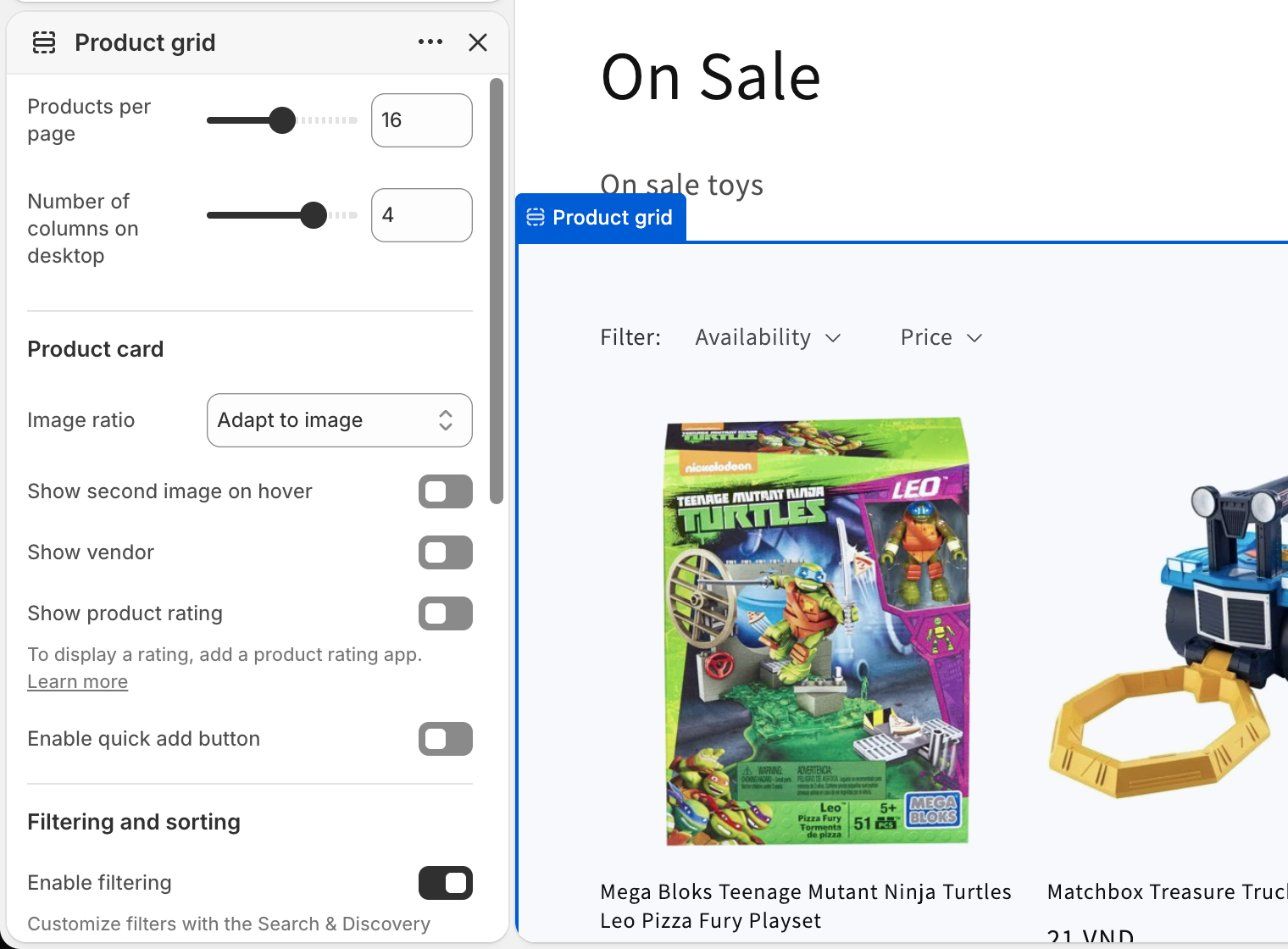
Your theme's product grid section has a products-per-page setting. In Dawn it runs from 8 to 36, with 16 as the default (Dawn on GitHub). Shopify's Liquid allows up to 250 products per page and stops paginating at the 25,000th item (Shopify Liquid reference), so a collection bigger than that needs splitting anyway. More products per page means fewer clicks for shoppers but more images to load. We suggest 24 to 36 as a starting point.
Step 7: Make the product grid load fast
Collection pages are image-heavy, so they're often among the heaviest pages on a store. The Page type report described below shows whether that's true for yours. Google's Core Web Vitals give three targets for real visitors at the 75th percentile: Largest Contentful Paint within 2.5 seconds, Interaction to Next Paint of 200 milliseconds or less, and Cumulative Layout Shift of 0.1 or less (web.dev).
Four things make the biggest difference on a collection page:
- Don't lazy-load the first row. Lazy loading the images shoppers see first delays the largest image on the page. In Google's own test on WordPress archive pages, median desktop LCP was 2,029 ms with default lazy loading and 1,759 ms with it turned off (web.dev, 2022). Dawn and Horizon load the first images eagerly and lazy-load the rest. A custom grid or a speed app can undo that, so check.
- Use one image ratio. In Dawn's Product grid settings, change Image ratio from the default Adapt to image to Square or Portrait. This one is about looks more than speed: Dawn already reserves space for each image, but mixed photo shapes make rows uneven and harder to scan.
- Keep apps off the grid. Most badge, quick-view and wishlist apps add scripts that run on each card. Remove the ones you don't use.
- Trim heavy banners. A full-width video or slideshow above the grid is often the largest element on the page. A single well-compressed image is faster.
Check your real numbers before and after each change. In your Shopify admin, go to Analytics > Reports and search for "web performance". Each metric has a Page type report that shows collection pages on their own (Shopify Help Center). The data can lag by up to 36 hours, so give a change a few days before you judge it.
Step 8: Link to your collections from the rest of the store
Google finds and ranks pages partly through the links pointing to them. Its ecommerce guidance says to link from menus to category pages and from category pages to subcategories, and that "the more links a page has to it within a site, the higher the relative importance of the page" (Google Search Central, updated December 10, 2025).
- Main menu: put your most important collections there, and use the same words shoppers search for.
- Home page: feature your top collection. Our guide to adding products to a featured collection shows how to set one up in Dawn or Horizon.
- Collection to collection: link "Linen Shirts" to "Linen Trousers" in the buying guide below the grid.
- Blog posts and product pages: link to the collection with descriptive text, like "men's linen shirts", not "shop now".
Google also says to link to every product you want indexed. Collection pages do most of that work, which is one more reason to keep products in at least one live collection. If you're moving many products into new collections at once, bulk actions handle it in a few clicks, as our guide to bulk editing Shopify products explains.
Step 9: Add the right structured data, and skip the wrong kind
Structured data is code that tells Google what a page is. For collection pages, the rules are short.
- Don't add Product markup to collection pages. Google says product rich results "only support pages that focus on a single product", and uses "shoes in our shop" as an example of something that isn't a specific product (Google Search Central, updated September 8, 2026). Some SEO apps add it to collection pages anyway, so test a collection URL in Google's Rich Results Test. The one exception is a beta product carousel in the European Economic Area and South Africa, which uses ItemList markup on category pages (Google Search Central). Outside those regions, skip it.
- Add BreadcrumbList if your theme shows breadcrumbs. Google shows breadcrumb rich results on desktop (Google Search Central). The markup should match breadcrumbs that shoppers can actually see on the page.
On the demo stores we tested, both Dawn and Horizon output only Organization markup on collection pages. That's a safe default. Your product pages are where Product markup belongs.
Shopify collection page optimization: FAQ
How do I improve SEO on a Shopify collection page?
Write a custom page title, meta description and short URL handle in the collection's Search engine listing section. Add a short description above the products and a longer buying guide below them. Then link to the collection from your main menu and related pages. Shopify already handles canonical tags for filtered, sorted and paginated URLs, except single-tag URLs like /collections/shirts/blue.
Should out-of-stock products stay in Shopify collections?
Usually, yes, if they're coming back. Removing them takes away a link Google uses to reach their product pages, and shoppers lose the chance to see they exist. Move them below the in-stock products instead of leaving them at the top. Products you'll never restock can be redirected to a close replacement or allowed to return a 404, and our out-of-stock guide covers when to use each.
Should I let Google index Shopify filter pages?
Usually not. Shopify points single-filter URLs at the main collection with a canonical tag and blocks sorted and multi-filter URLs in its default robots.txt, which matches Google's advice. Single-tag URLs like /collections/shirts/blue are the exception, so don't link to them. If a filtered view is worth ranking, such as "black linen shirts", create it as a separate collection with its own title and description.
Does changing a collection's URL handle hurt SEO?
It can, for a while. Google has to find and process the new URL. Shopify warns that changing the handle too often can stop the collection appearing in search results. If you change it, tick the option to create a redirect from the old URL so existing links keep working and most ranking signals pass to the new URL.
Why does Google show /collections/name/products/ URLs?
Some themes link to products through the collection, such as /collections/shirts/products/linen-shirt. Shopify adds a canonical tag on those pages that points to /products/linen-shirt, so Google is told which version to index. Dawn and Horizon link straight to /products/ URLs.
How many products should a Shopify collection page show?
We suggest 24 to 36 per page as a starting point, and Dawn's setting goes up to 36. More products per page means fewer clicks but heavier pages. Whatever you choose, make sure page 2 and beyond are reachable through normal links, especially if you use infinite scroll.